
Getting Started
Getting Started
Your guide to using the Confluent Self-Service portal
Welcome
Welcome to the Confluent Self-Service portal! This application provides a secure, multi-tenant interface for managing your Kafka resources in Confluent Cloud — including Topics, Connectors, Schemas, Service Accounts, and Identity Pools.
Before you can start managing resources, you'll need to set your Context (Business Unit and Stage). The details for your context are provided to you by the E.ON Platform Team. If you haven't received this information yet, please reach out to streaming-platform@eon.com.
Setting Context
The Context determines which Kafka environment you are working with. It consists of two fields:
Business Unit
Your business unit identifier (e.g., scada).
It determines which Kafka cluster and resources you have access to.
The Business Unit field is a searchable dropdown that is automatically populated with the business units you have access to. The portal detects your accessible business units by checking your Microsoft Entra ID group memberships against the configured groups for each business unit. Only the business units for which you have at least Viewer access are shown. If only one business unit is available, it is selected automatically.
Stage
The environment stage you want to work in. Available stages are:
dev— Development environmentqas— Quality Assurance / Staging environmentrun— Production environment
No business units visible?
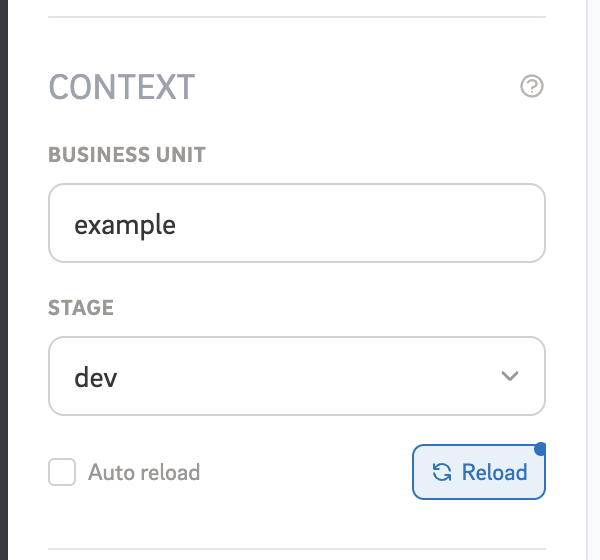
You can find the Context selector at the bottom of the sidebar on the left. Enter your Business Unit and select your Stage to get started.
When the context has changed but the page data has not yet been refreshed, a small dot will appear on the Reload button to indicate that the context still needs to be reloaded. See the next section for more details on auto and manual reload behaviour.
Using Context
Once your context is set, the portal will use it to load your resources (topics, connectors, schemas, service accounts, identity pools) from the correct Kafka environment. There are two ways the context can refresh data on the page:
Auto Reload (enabled by default)
When the Auto reload checkbox is checked, any change you make to the Business Unit or Stage will immediately refresh the page data. This is the default behaviour.
Manual Reload
If you uncheck Auto reload, changing the context will not automatically refresh the page. Instead, a small indicator dot will appear on the Reload button to show that the context has changed. Click the Reload button when you are ready to load data for the new context.
Tip
Breadcrumbs
Throughout the portal, you'll see a breadcrumb navigation bar near the top of each page. The breadcrumbs show your current location and the context you're working in.
Example breadcrumb:
Each segment of the breadcrumb represents:
Home — the home icon links back to the portal home page.
Resource type — the type of resource you're viewing (e.g., topics, connectors, schemas, service-accounts, or identity-pools).
Business Unit — your business unit identifier from the current context.
Stage — the environment stage (dev, qas, or run).
Note
Read-Only Environments
Some environments may be configured as read-only. This is typically the case for production
(run) environments, where changes are restricted to protect live workloads.
A BU admin controls this per business unit and stage with the Allow Modify Resources
setting in Admin Settings; when it is off, the environment is read-only for developers.
What you can do in a read-only environment
- View topics, connectors, schemas, service accounts, and identity pools
- Browse topic configurations and connector settings
- View cluster and topic metrics
What is restricted
- Creating new topics, connectors, schemas, service accounts, or identity pools
- Updating existing resource configurations
- Deleting resources
When you navigate to a list page (Topics, Connectors, Schemas, Service Accounts, or Identity Pools) in a read-only environment, a banner will appear at the top of the page to let you know:
Example banner:
While this banner is visible, create, edit, and delete controls will be disabled or hidden. API requests that attempt to modify resources will receive a 403 Forbidden response.
Note
Authorization
Access to resources is managed through Microsoft Entra ID security groups. Each business unit has dedicated groups that control who can access and manage its resources. Your role determines what actions you can perform.
Roles & Permissions
When you access a business unit, you are assigned one of the following roles based on your Entra ID group membership. Your current role is displayed as a badge in the sidebar context panel.
| Role | Scope | Permissions |
|---|---|---|
| Super Admin | All business units within a shared landing zone |
|
| Admin | Single business unit |
|
| Developer | Single business unit |
|
| Viewer | Single business unit |
|
How authorization works
Your role is determined by the Entra ID security groups you belong to.
Each business unit can have separate groups configured for each role level,
and those groups can differ per stage — so you can be a Developer on dev
and a Viewer on run of the same business unit.
- You must be a member of at least one configured Entra Group for your business unit and stage. The stage selector in the sidebar only lists the stages you can open.
- If you belong to multiple groups, the highest role takes precedence (Super Admin > Admin > Developer > Viewer).
- Group membership is managed by the E.ON Platform Team.
- If you need access to a different business unit or stage, or a higher role, contact the Platform Team to be added to the appropriate group.
Tip
RESTful API
In addition to the web interface, the Confluent Self-Service portal exposes a RESTful API that you can use to manage your Kafka resources programmatically. This is useful for automation, CI/CD pipelines, and integrating with other tools.
Full interactive API documentation is available via the Swagger UI, where you can explore all available endpoints, view request and response schemas, and try out API calls directly.
Endpoint Structure
All resource endpoints follow the same URL pattern:
/{business_unit}/{stage}/{resource}
Where business_unit
is your business unit identifier,
stage
is the environment (dev,
qas, or
run),
and resource
is the type of resource (e.g., topics, connectors, schemas, service-accounts, identity-pools).
| Resource | Endpoints | Operations |
|---|---|---|
| Topics | /{bu}/{stage}/topics /{bu}/{stage}/topic/{name} |
List, Get, Create, Update, Delete |
| Connectors | /{bu}/{stage}/connectors /{bu}/{stage}/connector/{name} |
List, Get, Create, Update, Delete, Pause, Resume, Restart |
| Schemas | /{bu}/{stage}/schemas /{bu}/{stage}/schema/{subject}/{version} |
List, Get, Create, Update, Delete |
| Service Accounts | /{bu}/{stage}/service-accounts /{bu}/{stage}/service-account/{id} |
List, Get, Create, Bulk Create |
| Identity Pools | /{bu}/{stage}/identity-pools /{bu}/{stage}/identity-pool/{id} |
List, Get, Create, Update Filter, Delete |
Authentication
The API uses OAuth2 with Microsoft Entra ID. To authenticate your API requests, you need
to obtain an access token and include it in the Authorization header.
Option 1: Swagger UI (interactive)
The easiest way to get started is via the Swagger UI:
- Open the Swagger UI at
/api-docs - Click the Authorize button at the top of the page
- Sign in with your E.ON Microsoft account
- Once authenticated, you can try out any endpoint directly from the browser
Option 2: Obtain a token via Azure CLI
If you have the Azure CLI installed, you can obtain a token for use in scripts and tools:
# Sign in (if not already)
az login

# Get an access token for the Self-Service API
az account get-access-token \
  --resource api://<APP_CLIENT_ID> \
  --query accessToken -o tsv
The APP_CLIENT_ID
for your environment will be provided by the E.ON Platform Team.
Example API Calls
Once you have an access token, include it in the Authorization
header as a Bearer token. Here are some examples using curl:
List all topics:
curl -X GET "https://<host>/scada/dev/topics" \
  -H "Authorization: Bearer $TOKEN"
Create a new topic:
curl -X POST "https://<host>/scada/dev/topic" \
  -H "Authorization: Bearer $TOKEN" \
  -H "Content-Type: application/json" \
  -d '{
    "name": "my-events",
    "partitions_count": 3,
    "config": {
      "retention.ms": "604800000"
    }
  }'
Get a connector's details:
curl -X GET "https://<host>/scada/dev/connector/my-sink?show_config=true" \
  -H "Authorization: Bearer $TOKEN"
List schemas (latest versions only):
curl -X GET "https://<host>/scada/dev/schemas?latest_only=true" \
  -H "Authorization: Bearer $TOKEN"
List service accounts:
curl -X GET "https://<host>/scada/dev/service-accounts" \
  -H "Authorization: Bearer $TOKEN"
List identity pools:
curl -X GET "https://<host>/scada/dev/identity-pools" \
  -H "Authorization: Bearer $TOKEN"
Tip
<host>
with the portal URL provided to you by the E.ON Platform Team.
Contact
If you have any questions, need access to a business unit, or require assistance with the portal, please contact the E.ON BRAIN Platform Team. You can find our contact details in the footer of every page.